2026.11.11
VOCALOID7 Installation and Authorization (Mac)
VOCALOID7 consists of two softwares: VOCALOID7 Editor, which is software for editing VOCALOID data, and the Voicebank, which contains VOCALOID voice data.
VOCALOID7 Editor comes standard with the "asa" voicebank, which is automatically installed alongside VOCALOID7 Editor.
This article explains how to install the Mac version of VOCALOID7 Editor for those who have purchased VOCALOID7.
Optional voicebanks can also be installed and authorized by following the same steps described in this article.
Contents
1.Download VOCALOID7 files
2.Decompress the files
3.Install VOCALOID7 Editor
4.Startup and authorization of VOCALOID7 Editor
1. Download VOCALOID7 files
Enter the "VOCALOID SHOP DOWNLOAD CODE" into the following download site. The code and the dowonload site url listed in the e-mail you receive after purchase.
Find "VOCALOID7 Editor for Mac" in your purchase history and click the [Download] .
- The file size is approximately 358MB. We recommend downloading using a high-speed Internet environment.
- VOCALOID7 is made for PCs, so please download it on your PC.
2. Decompress the files
Open the location where the file downloaded in Step 1.
- By default, the files are saved in the Download folder.
- File names may change depending on when they were downloaded.
- The alphanumeric characters at the end of the file name indicate the software version, which varies depending on when the file was downloaded.
The downloaded file is compressed in zip format. By default, Mac OS automatically decompresses files when downloading.
Once extracted, two disk image files named "VOCALOID7_Editor_7.x.x_Installer_mac.dmg" will appear. These disk images contain the installers which is a dedicated software for install.
- The software for installing a software is called an "installer".
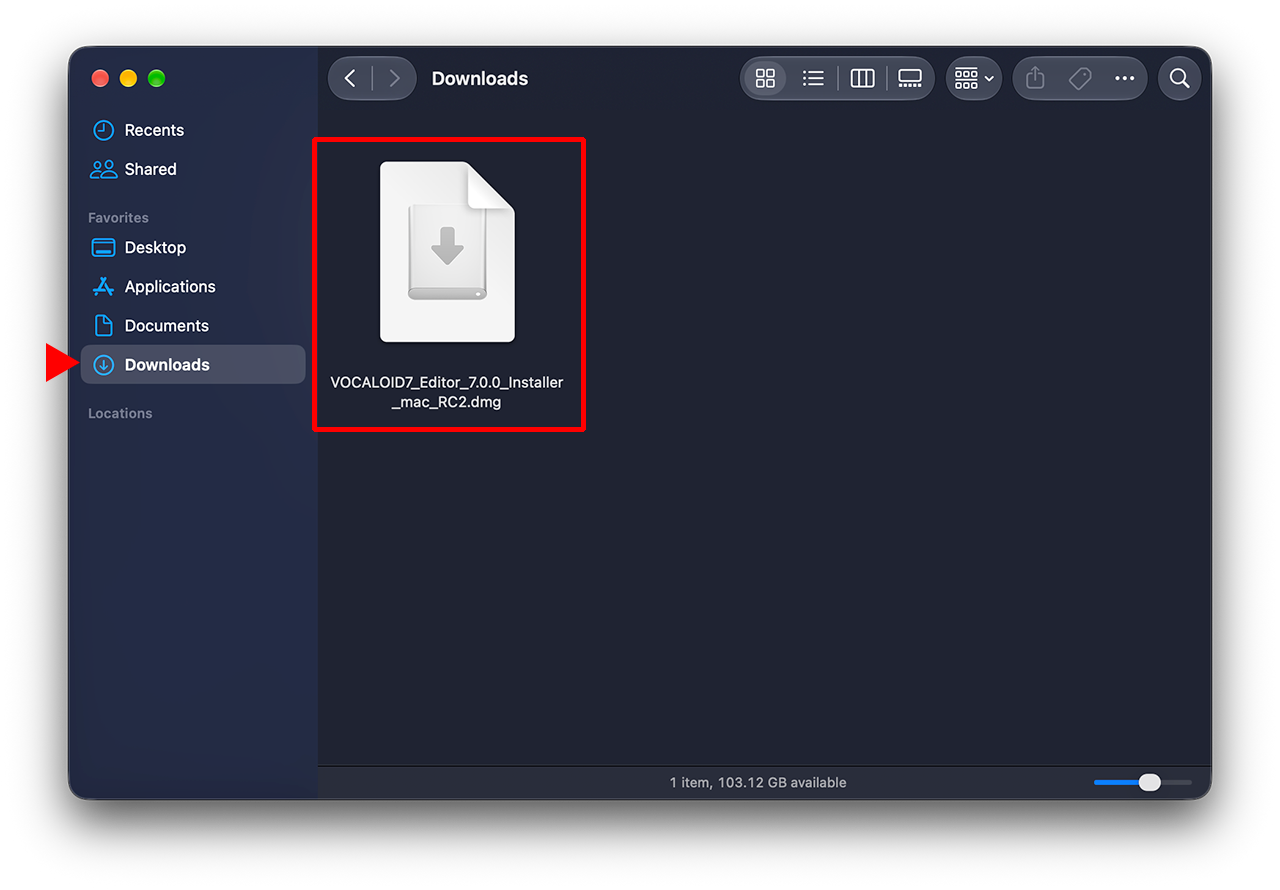
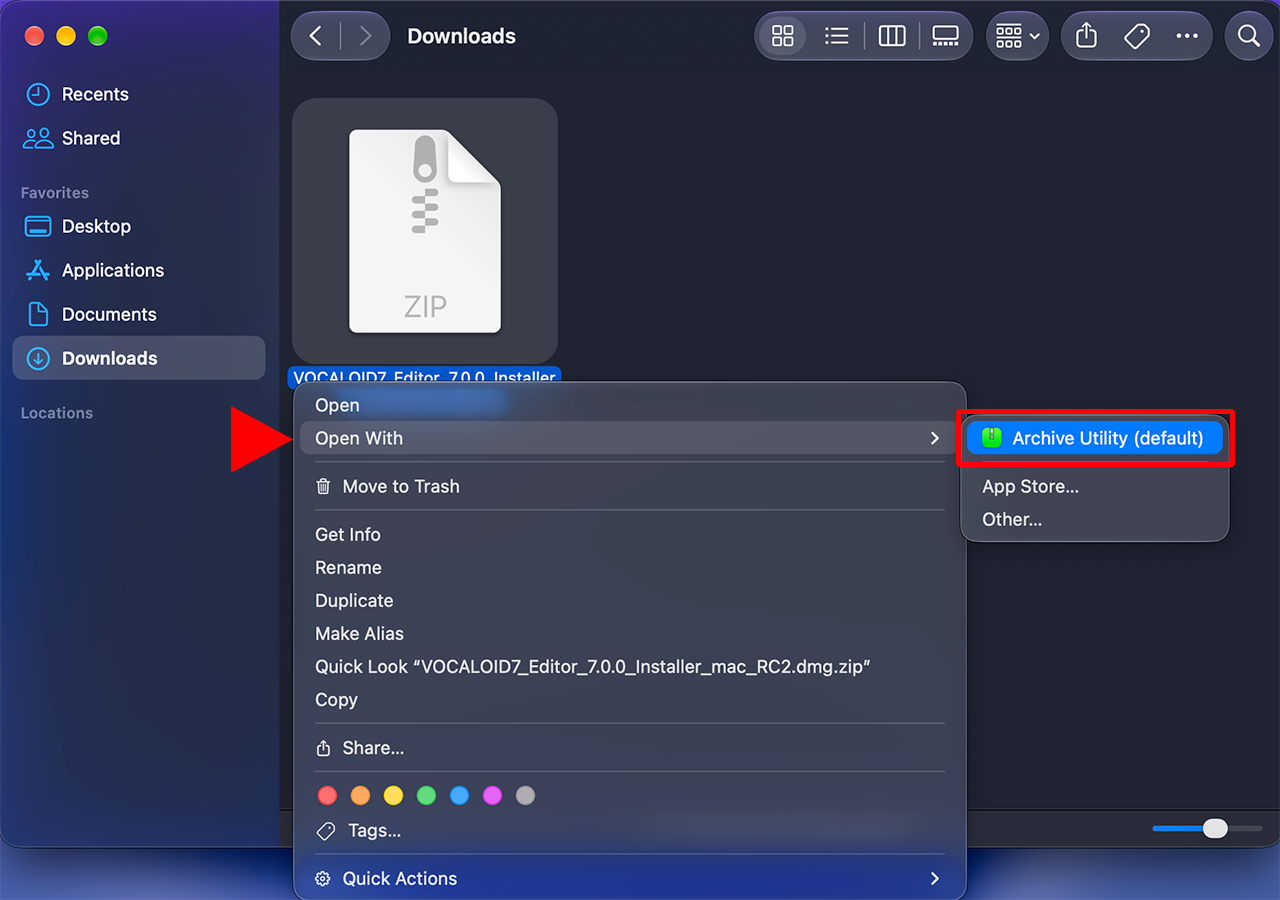
If the file is not automatically unzip, right-click (or control-click) the downloaded files and select [Open with>Archive utility (default)] to unzip the file.
3.Install VOCALOID7 Editor
Install VOCALOID Editor.
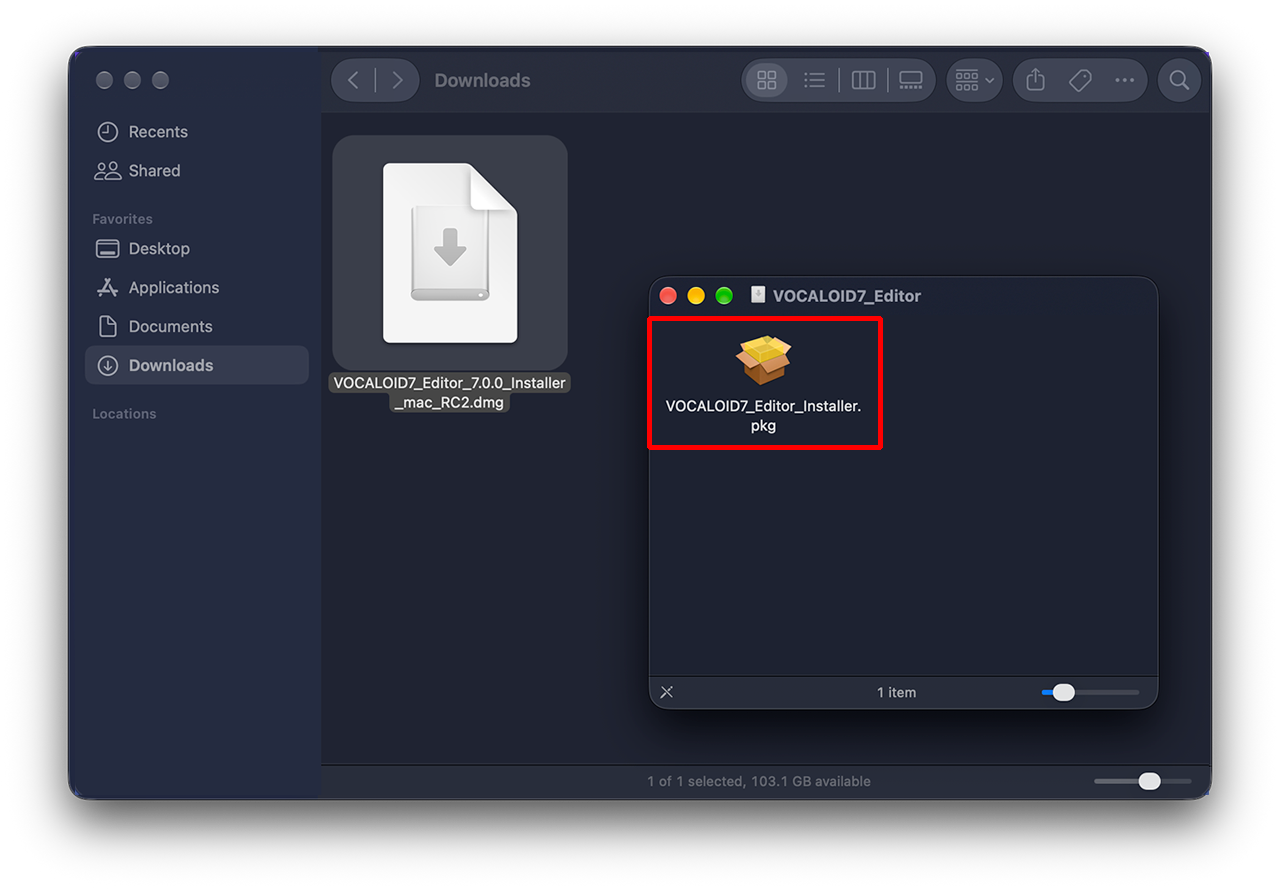
Open the folder and double-click to launch the file "VOCALOID7_Editor_7.x.x_Installer_mac.dmg". A new window will open and the file "VOCALOID7 Editor Installer.pkg" will appear.
Double-click "VOCALOID7 Editor Installer.pkg" to launch the installer.
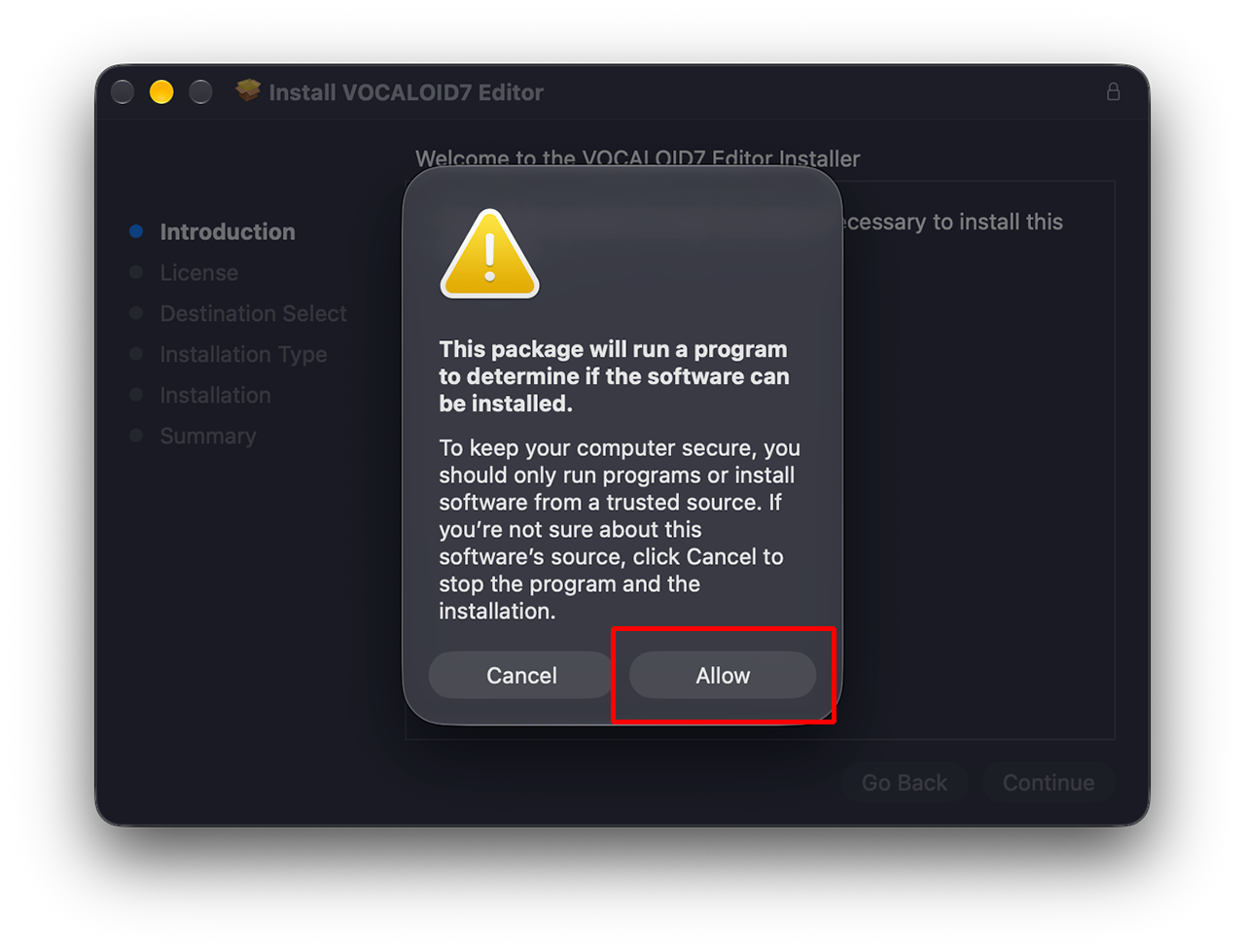
When the installer starts, the following confirmation message will appear. Click [Allow].
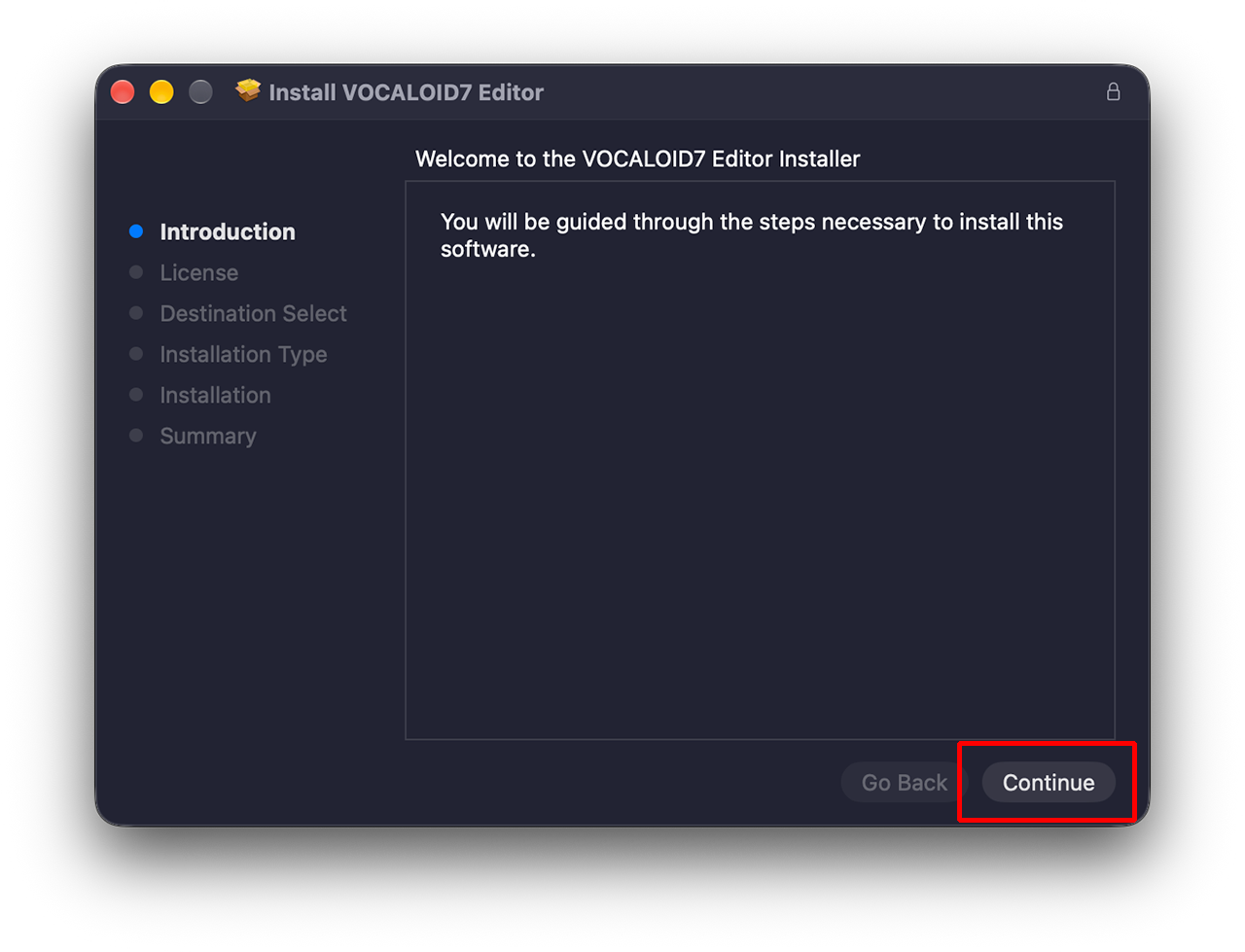
The installer has started. Click [Continue].
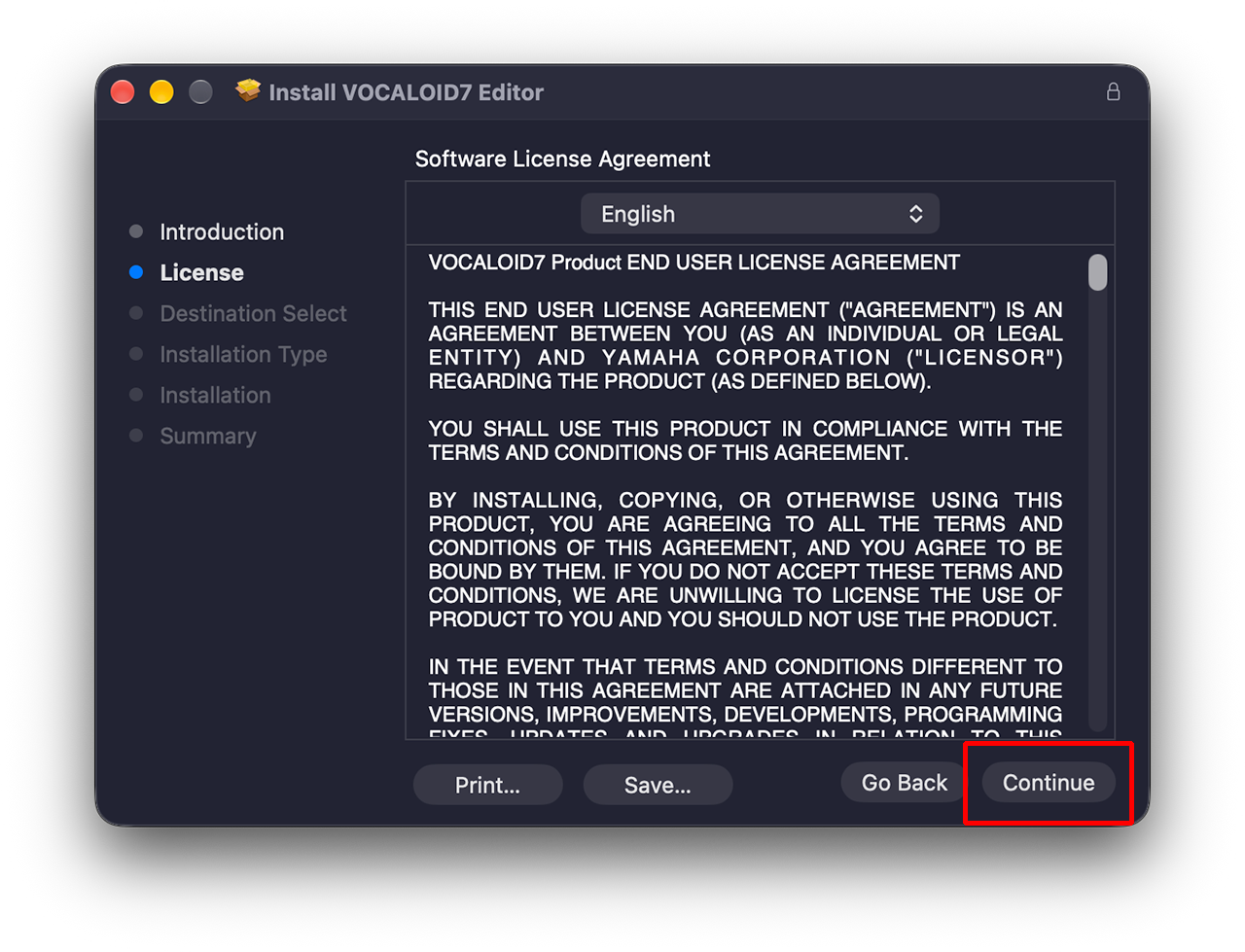
The "VOCALOID7 Product END USER LICENSE AGREEMENT" will appear. This agreement is the one that appears in any computer software. It describes what the user of the software must abide by.
Please read the terms carefully; if you accept them, click the [Continue] button.
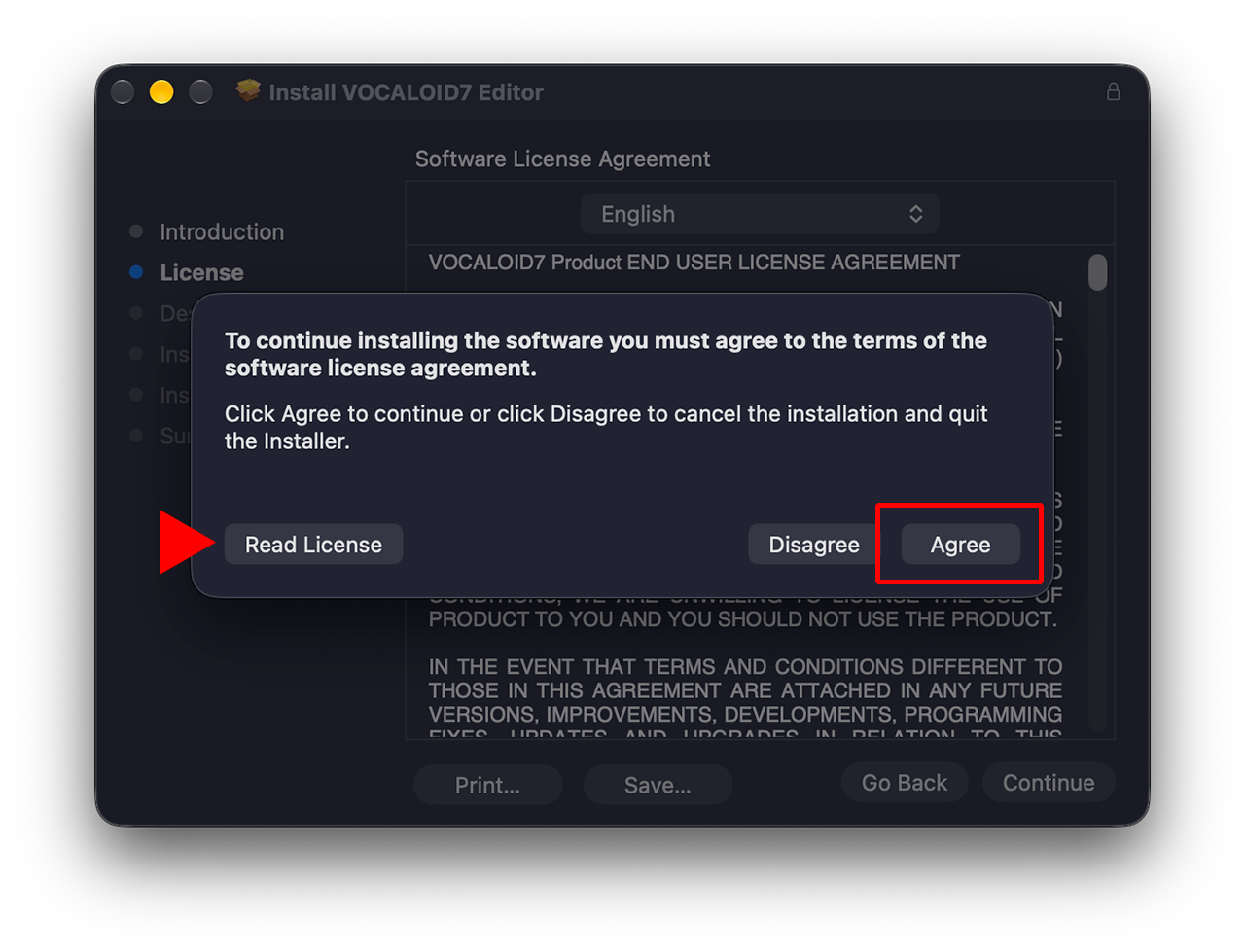
A message will appear asking if you accept "VOCALOID7 Product END USER LICENSE AGREEMENT". Click [Agree]. You can return to the previous page for reviewing the agreement by selecting [Read License].
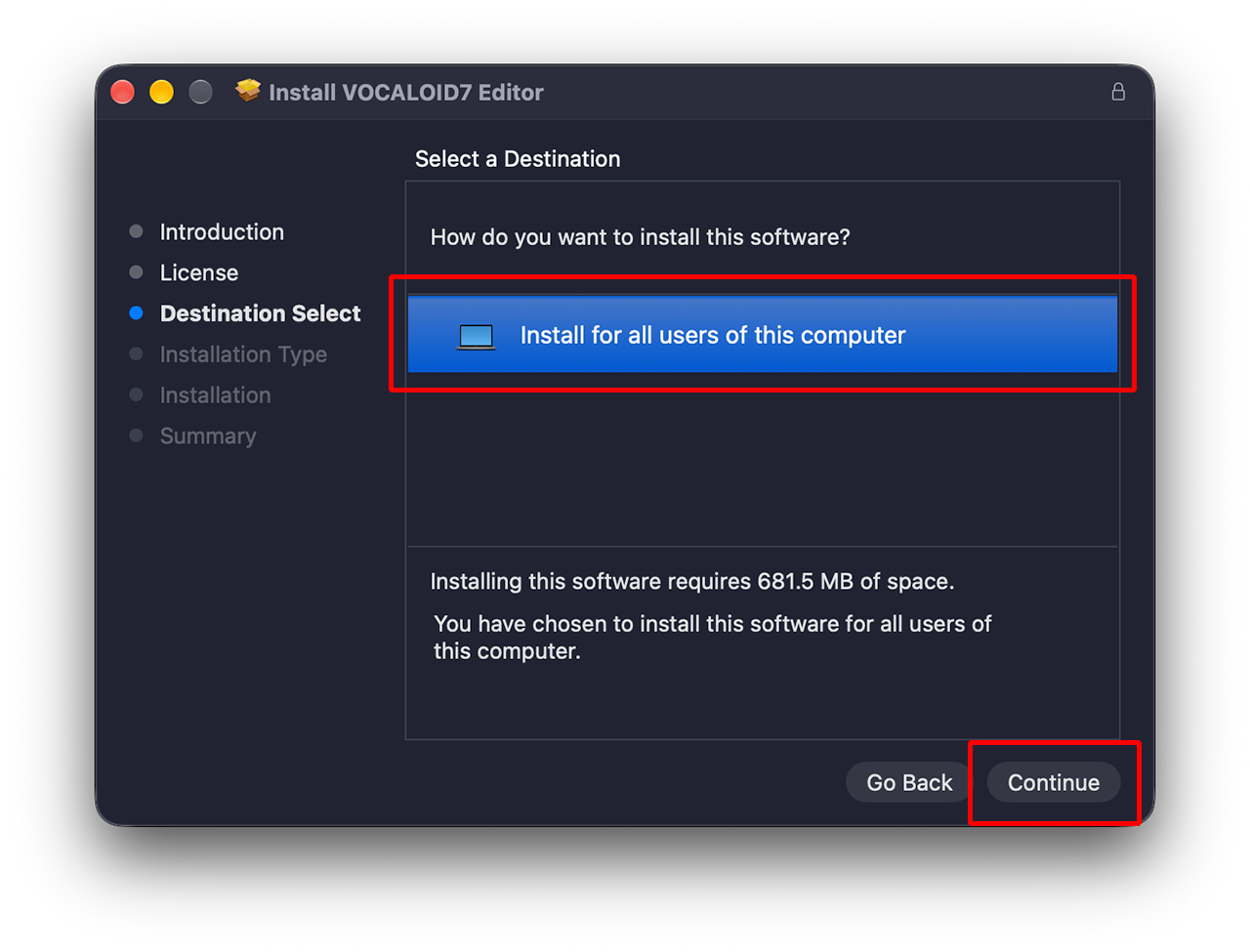
The destination selection screen will appear. Select "Install for all users of this computer" and click [Continue].
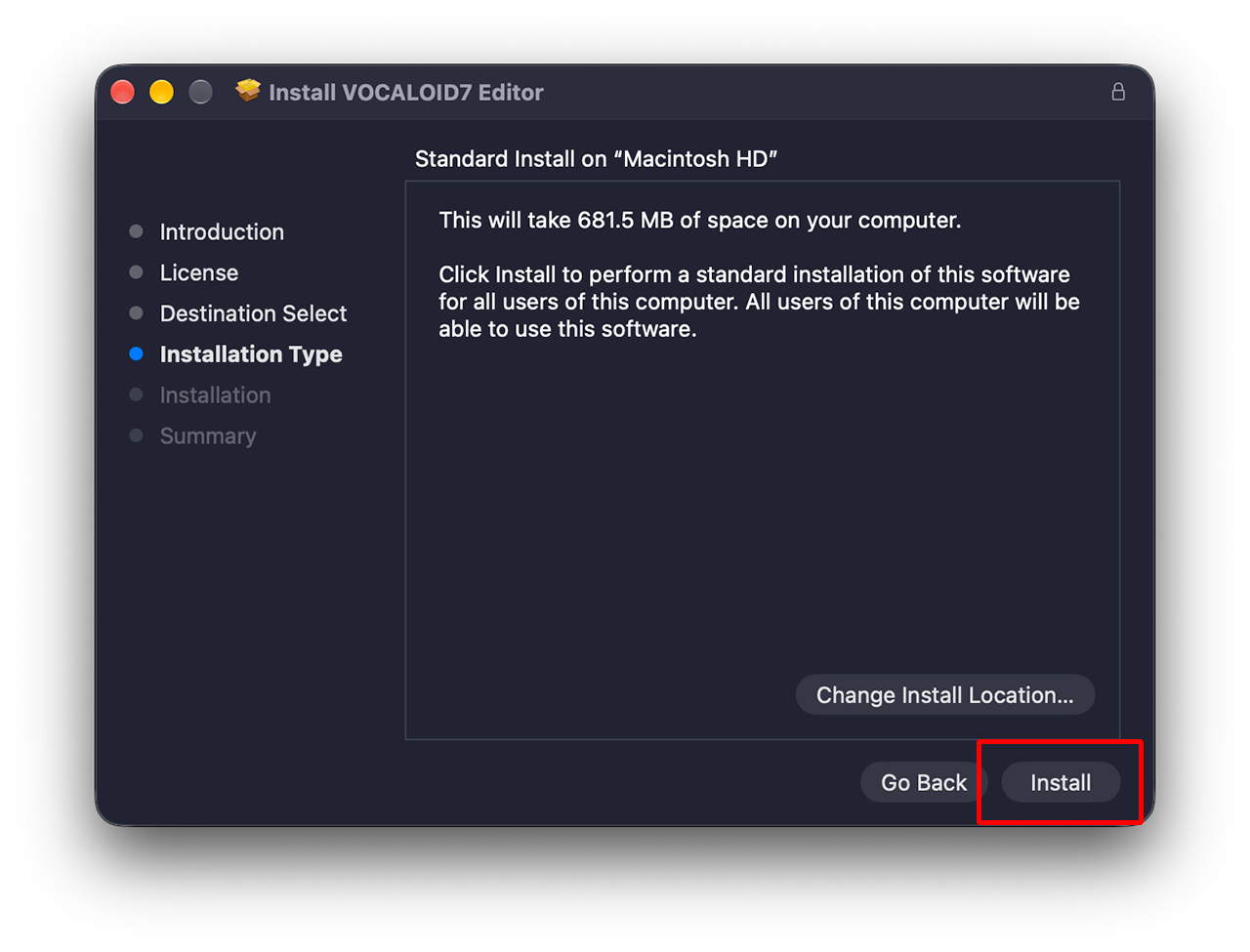
A final confirmation regarding the installation location will be displayed. If you wish to proceed with the installation as configured, click [Install]. To modify the installation destination, select [Change Install Location].
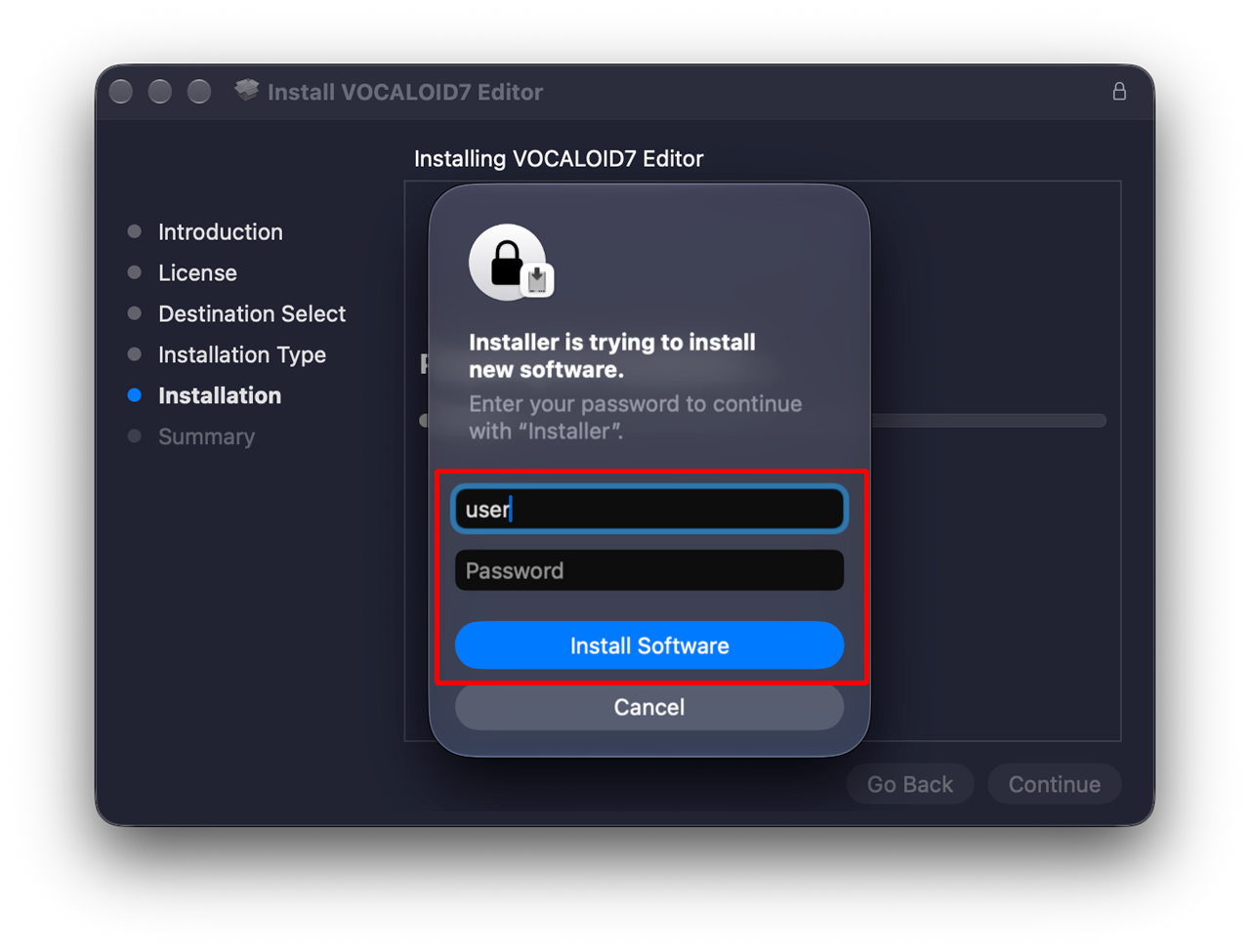
You need to allow VOCALOID7 Editor installation for your Mac. Enter the password you have set on your Mac or use Touch ID to allow the installation.
Granting permission will start the installation. Please keep the window open and wait until the installation is complete.
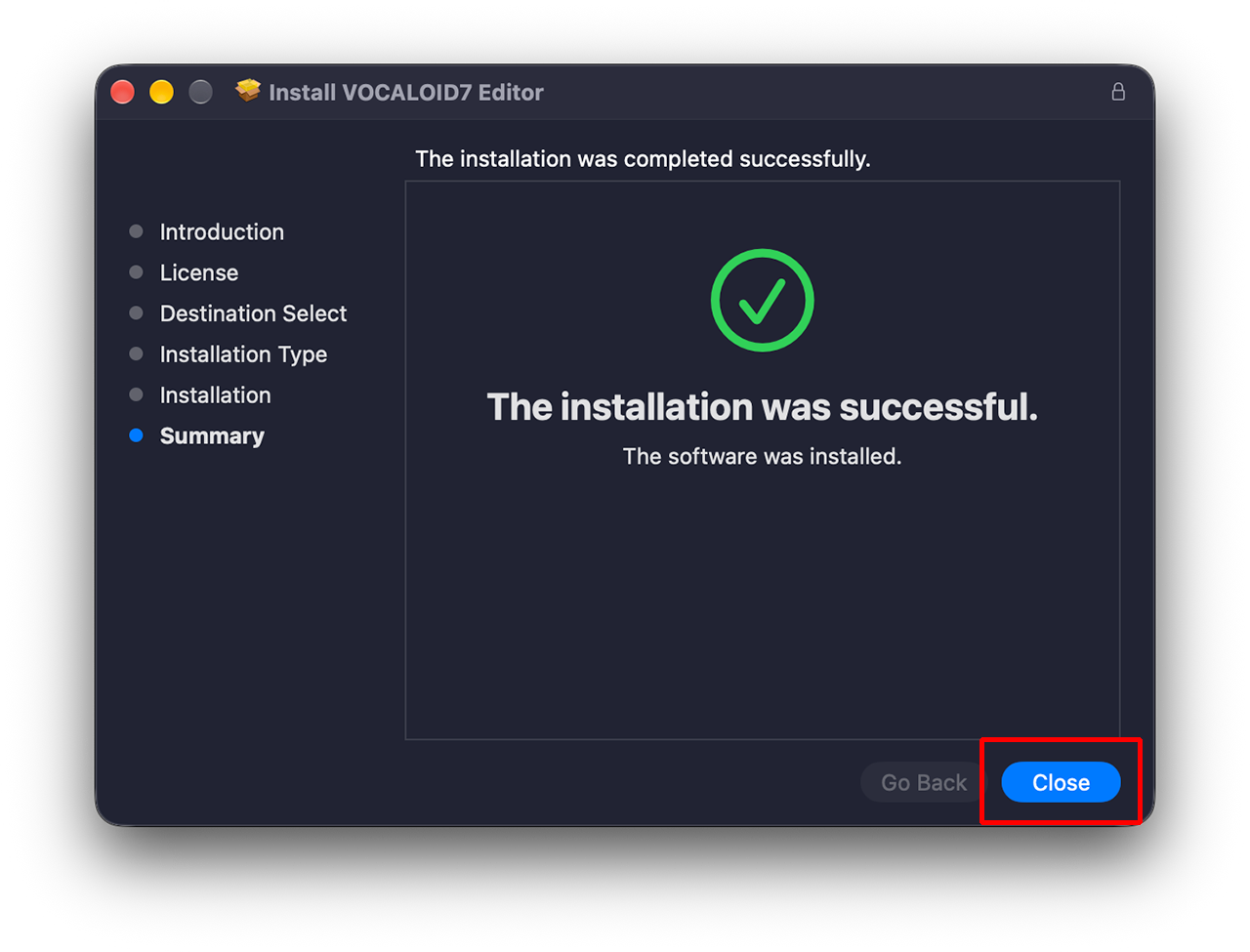
The installation has completed when the following screen is displayed. Select [Close] to finish the installation process.
After installation is complete, a message may appear asking if you want to delete the installer. Since the installer is no longer required, there is no problem with deleting it.
4. Startup and authorization of VOCALOID7 Editor
Let's launch VOCALOID7 Editor after installation.
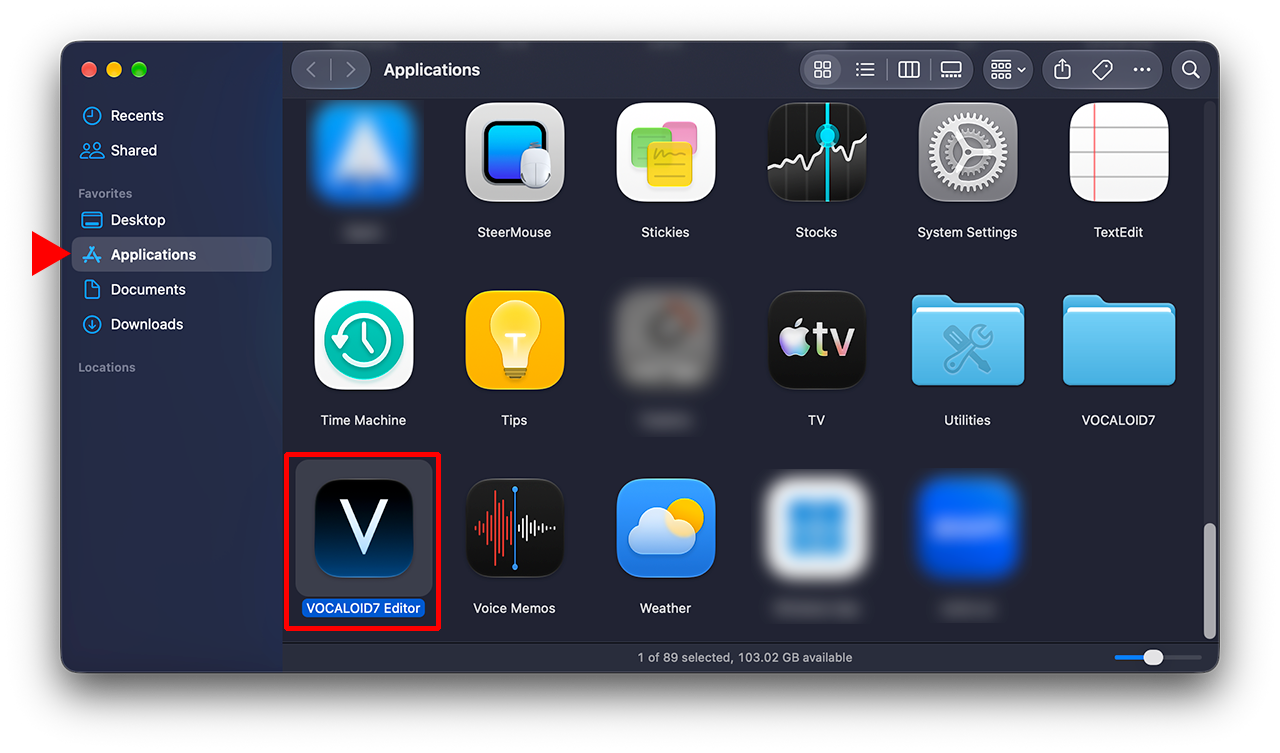
VOCALOID7 Editor is placed in the Applications folder. Open the Applications folder or click the Launchpad icon in the Dock and double-click the VOCALOID7 Editor icon to start it.
When you start VOCALOID7 Editor, the following message "Send Usage Statistics" will be displayed. Please select either [Allow] or [Don't Allow].
When you start VOCALOID7 Editor, the following message "Authorization screen" will appear. Select [Authorize now].
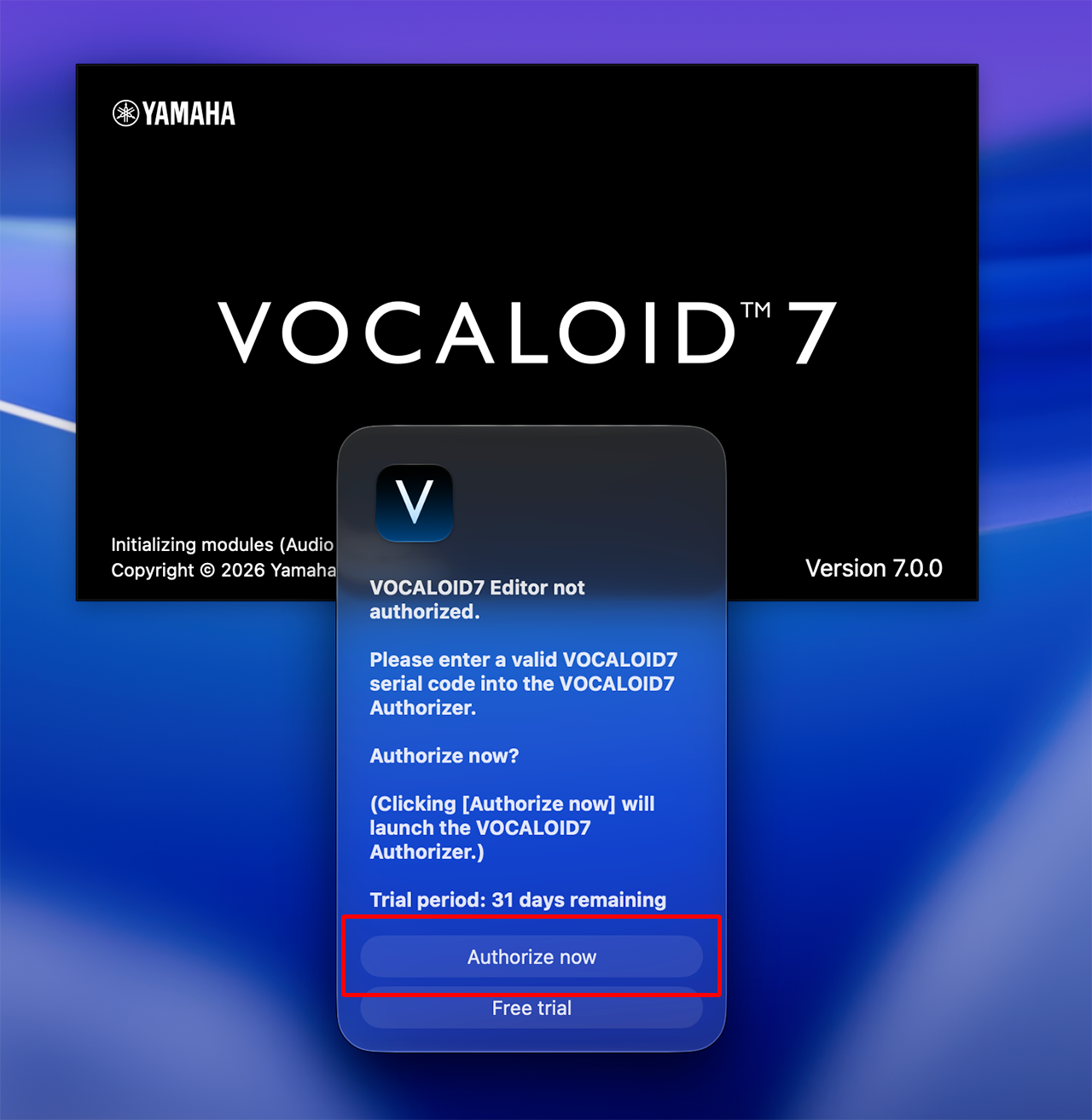
A separate software application called VOCALOID7 Authorizer, which is dedicated to authentication, will automatically start. This software is automatically installed when VOCALOID7 Editor is installed.
- This software is different from VOCALOID Authorizer used in earlier versions. Please note that the previous VOCALOID Authorizer cannot be used to authorize VOCALOID7 Editor.
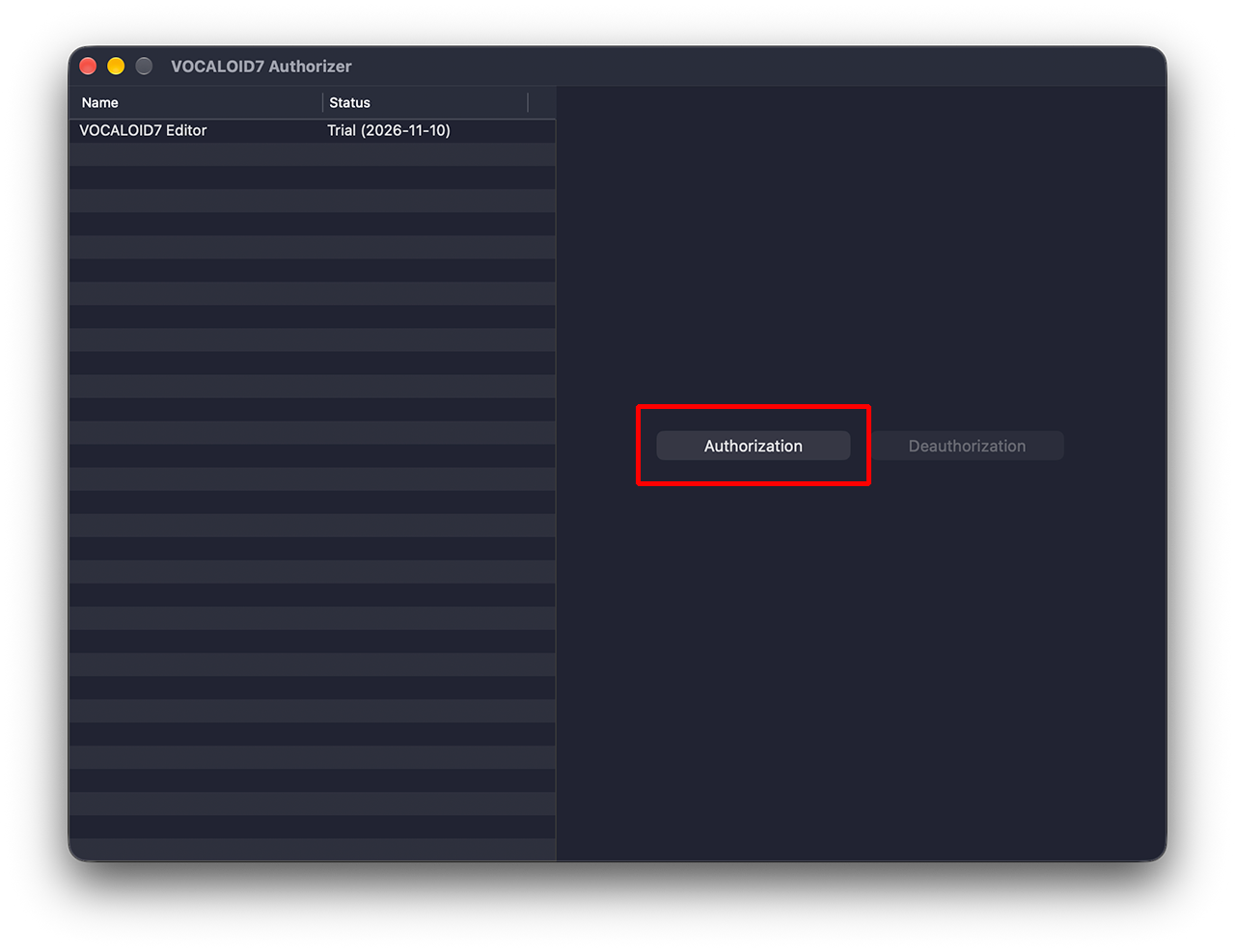
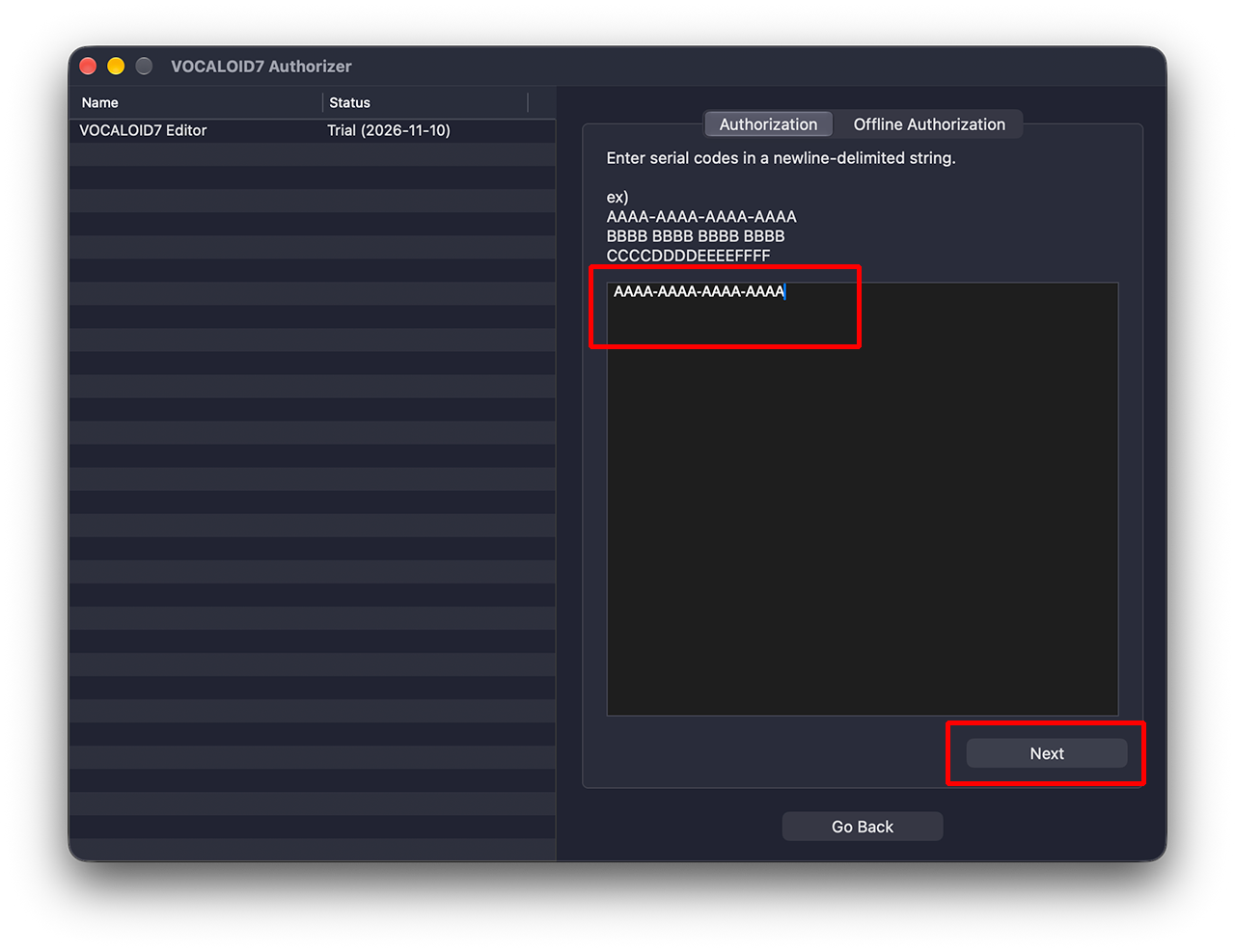
Enter the Serial code issued at the time of purchase in the Authorization area on the right side of the screen and select [Next].
- Serial codes can be found in order confirmation e-mails received when purchasing downloads at the VOCALOID SHOP.
- Internet connection environment is required for authorization.
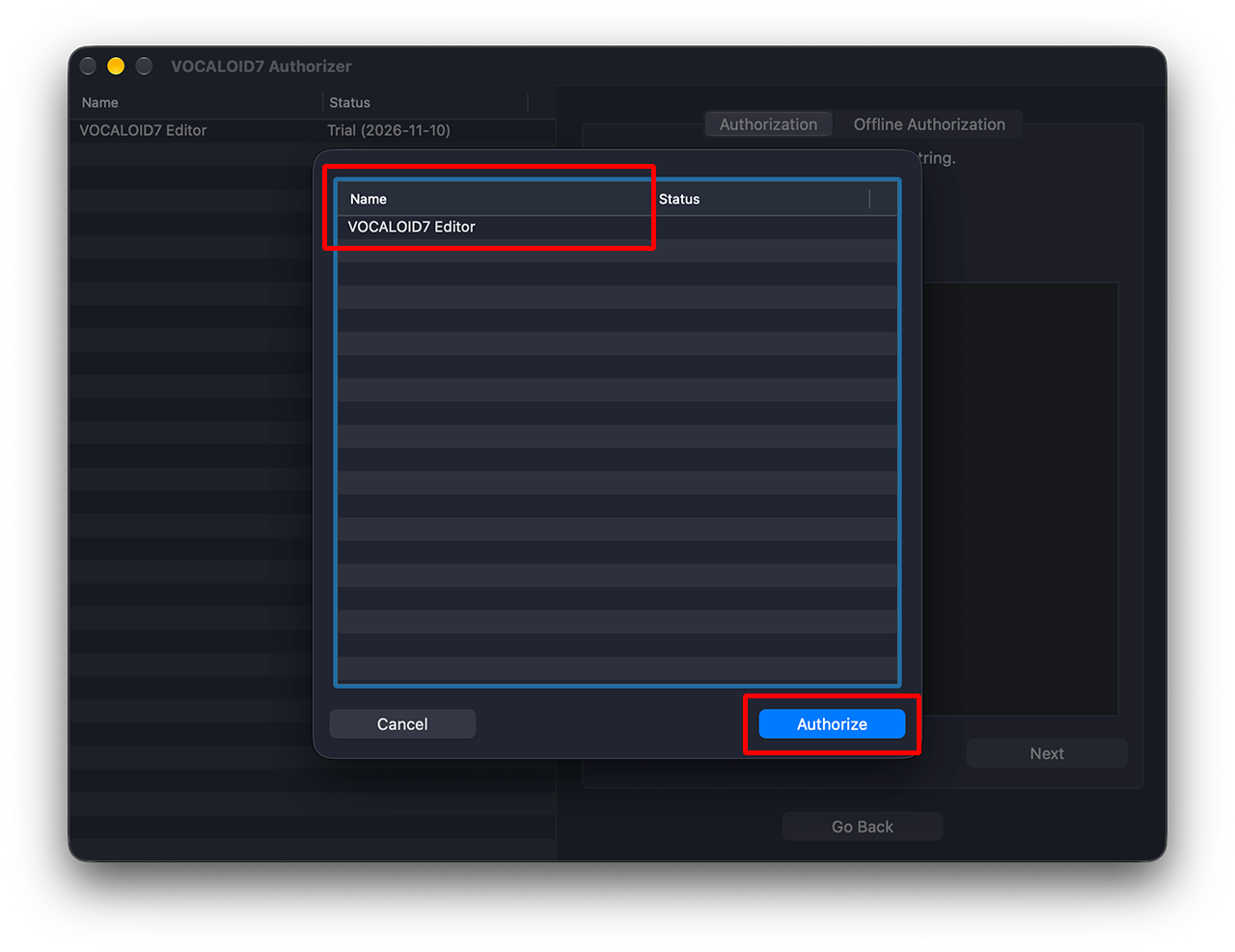
Verify that VOCALOID7 Editor is displayed on the screen, and click the [Authorize] button.
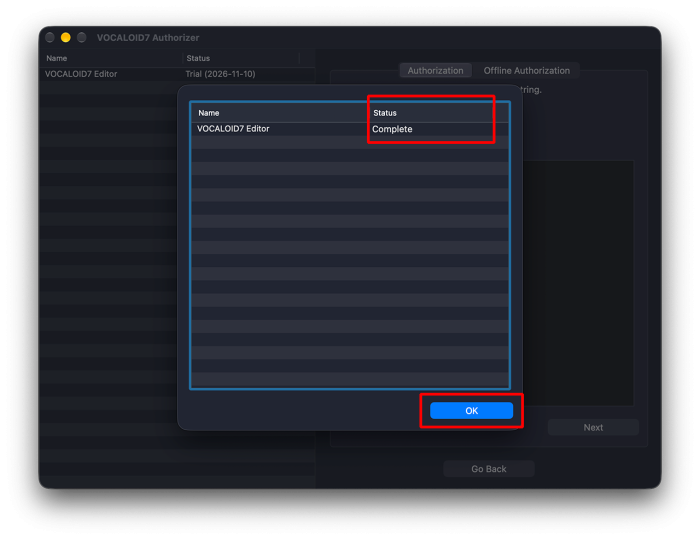
Once the status for VOCALOID7 Editor displays [Complete], authorization is complete. Click the [OK] button to close the window, and exit VOCALOID7 Authorizer.
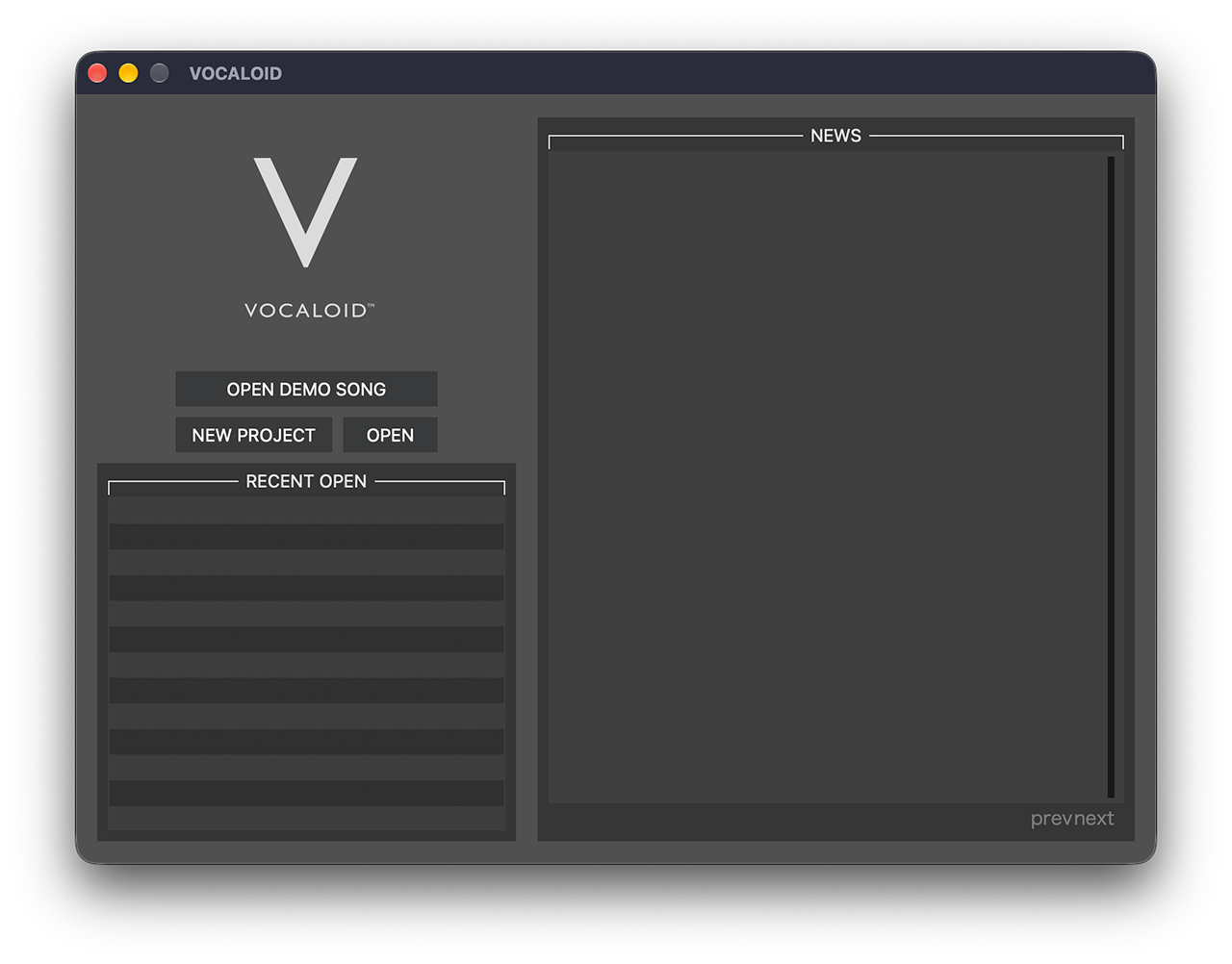
If the startup screen is displayed, all installation work is completed. Please enjoy VOCALOID7!
- The "NEWS" section of the screen varies depending on the time of year.
Please note that if you purchase additional voicebanks separately, each must be authorized individually. Proceed with the authorization process following the same steps as for VOCALOID7 Editor.