2026.11.11
How to Use VOCALOID7 in Cubase & Key Features of Cubase Integration
VOCALOID7 ensures exceptional collaboration with the Steinberg Cubase series, one of the most widely used DAWs (Digital Audio Workstations). Because Steinberg is a Yamaha group company, VOCALOID7 features an exceptionally deep level of integration that competitors cannot match.
When integrating different music production software, you typically need to import/export files or rely on dedicated integration protocols (such as ARA2). However, VOCALOID7 Editor and the Cubase series achieve full, seamless integration without requiring any complex setup. We highly recommend using the Cubase series for VOCALOID production.
This article walks through the workflow of using VOCALOID7 Editor within the Cubase series and explains its integrated features and operations.
- We recommend using the integration features between VOCALOID7 Editor and Cubase with Cubase 15 or later.
Contents
VOCALOID7 / Cubase Integration Mechanics and Usage
Key Integration Features Between VOCALOID7 Editor and Cubase
-Notes, Lyrics, and Parameters
-Project Management
-Transport Controls and Project Information (Tempo, Time Signature)
-Track Creation, Deletion, and Part Operations
-Mute and Solo Operations for Individual Tracks
VOCALOID7 / Cubase Integration Mechanics and Usage
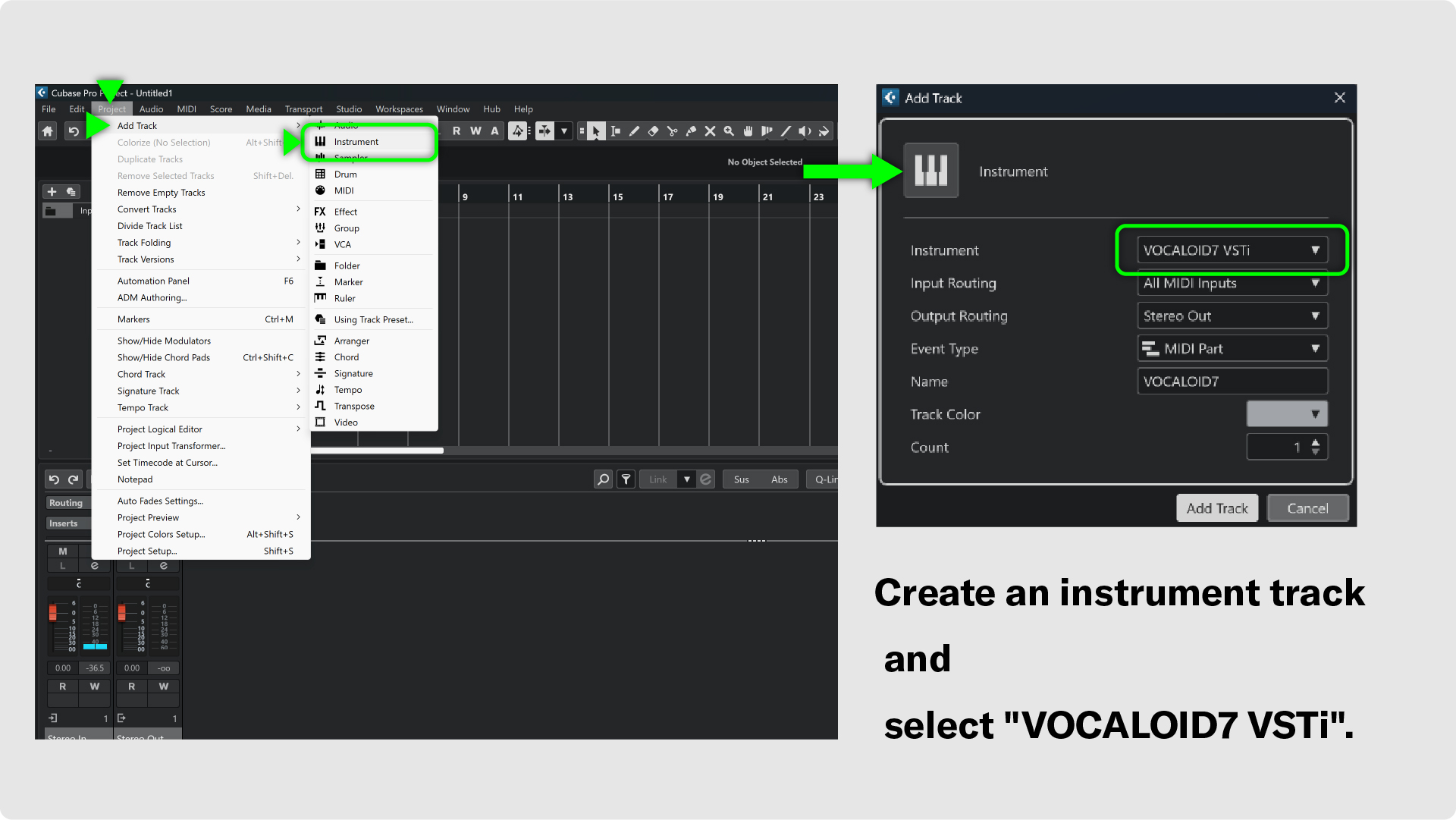
Within Cubase, VOCALOID7 Editor operates as a VSTi (VST Instrument). Create an "Instrument Track" to enter and edit VOCALOID data. Select [Project → Add Track → Instrument].
In the "Add Track" window, click the "Instrument" drop-down menu and select "VOCALOID7 VSTi" from the list. Once selected, click the "Add Track" button. The track name can be anything, but if you are unsure, set it to "VOCALOID7."
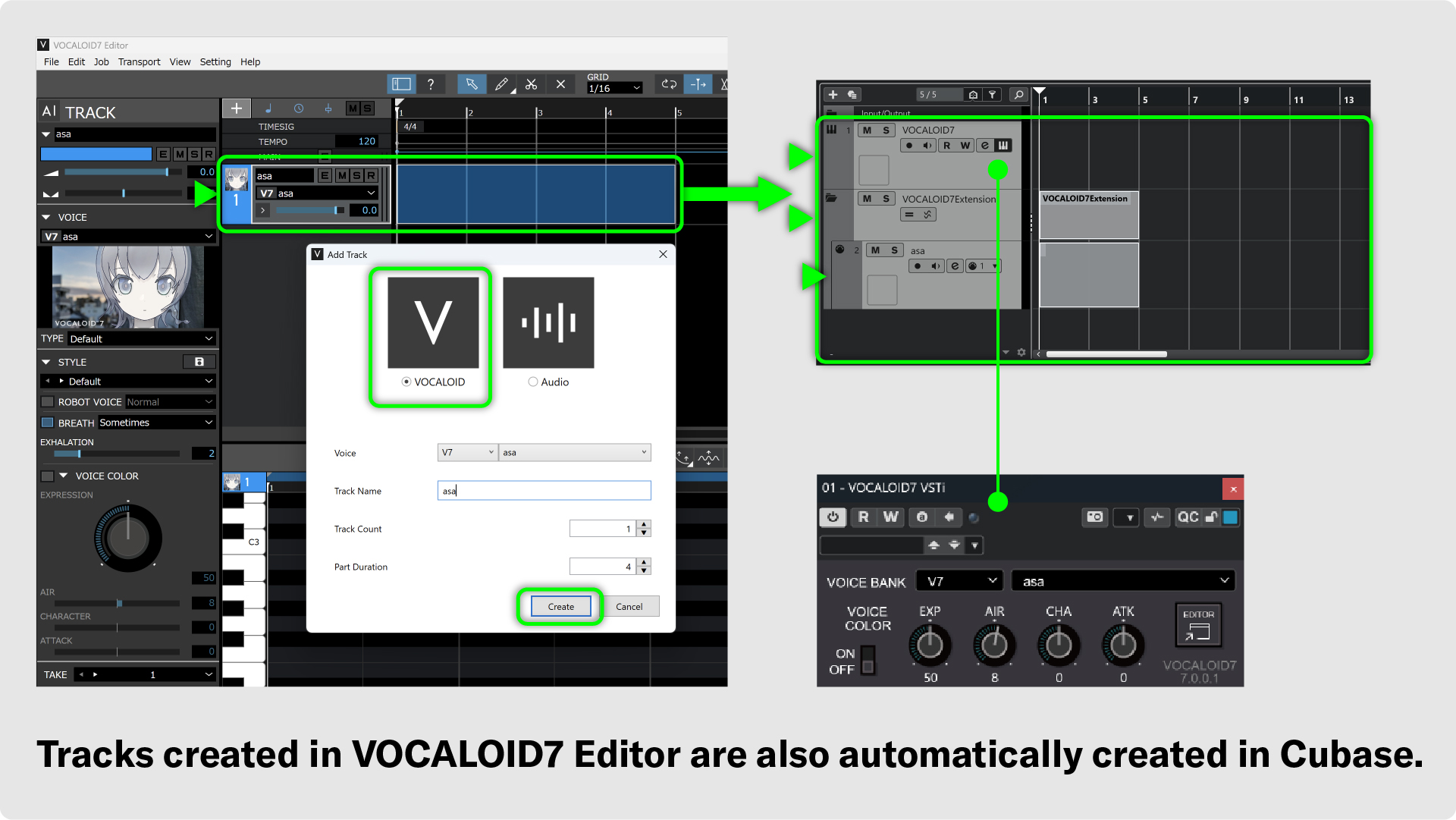
VOCALOID7 Editor will launch automatically. Create a VOCALOID track in VOCALOID7 Editor. You can modify the details later. If you are unsure what to name the track, using the voicebank name is a good option.
An Instrument Track with VOCALOID7 VSTi enabled and a Folder Track named "VOCALOID7 Extension" will be created. The VOCALOID tracks created in VOCALOID7 Editor are placed inside this Folder Track.
- Tracks inside the "VOCALOID7 Extension" folder: These tracks sync directly with each track in VOCALOID7 Editor. This is where regions for data entry are displayed.
- VOCALOID7 VSTi Track: The output track for the synthesized audio generated by VOCALOID7 Editor. Since this is an audio processing track, note editing is not performed here. Insert your audio effect plug-ins on this VOCALOID7 VSTi track.
- Important Notice: Renaming the VOCALOID7 Extension track will prevent integration with VOCALOID7 Editor. Please use the track without changing its name.
- Only one instance of VOCALOID7 VSTi can be used in a single project. When using multiple VOCALOID tracks, add new tracks within VOCALOID7 Editor.
Setup is now complete.
Beyond basic transport controls like play and stop, almost all editing functions are fully synchronized, allowing you to use VOCALOID7 as if it were a native Cubase feature.
The audio within VOCALOID7 Editor supports both stereo and multi-channel output.
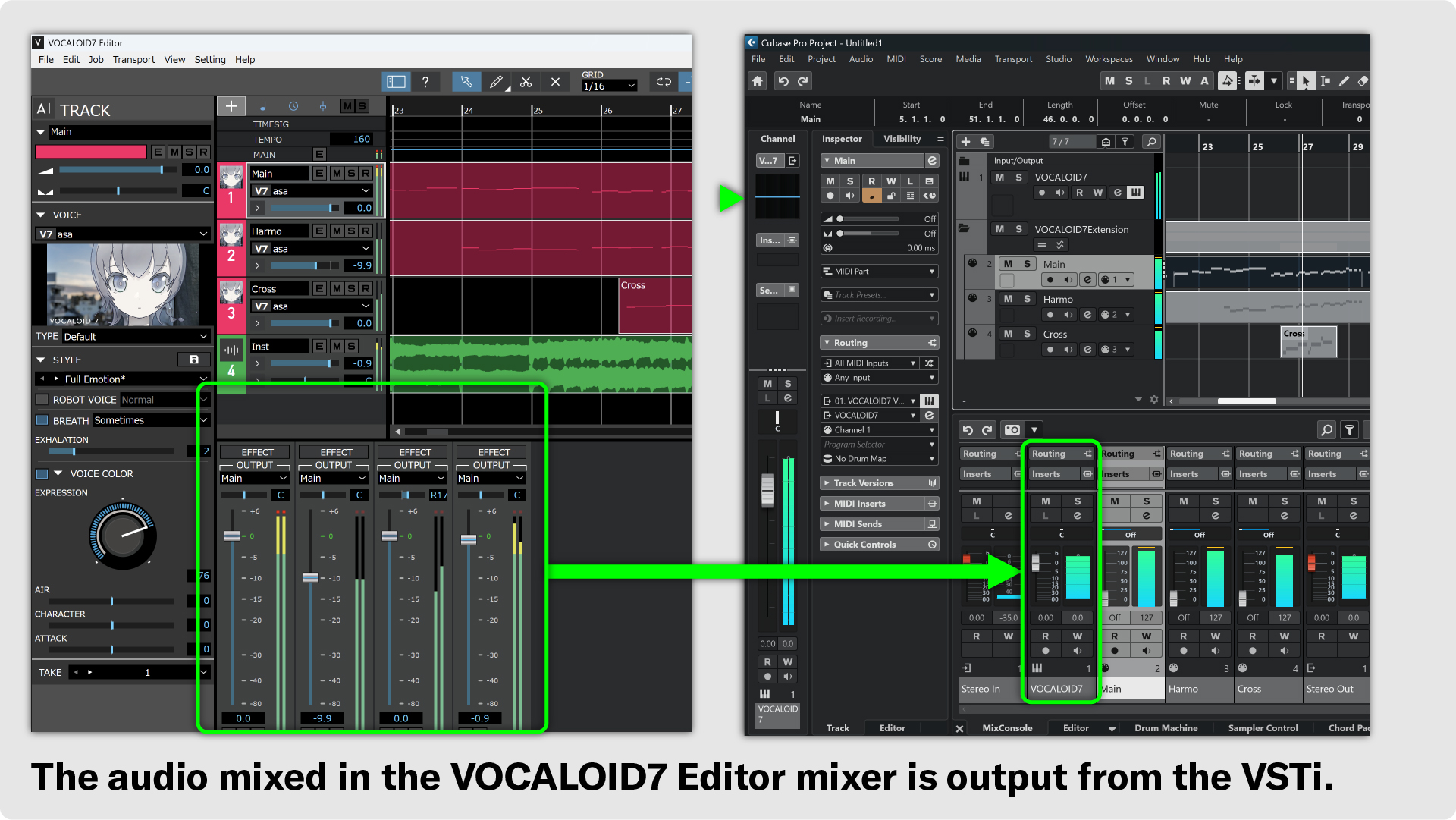
To use multi-channel output, change the output of each track to "BUS xx" in a track of VOCALOID7 Editor. If you want to route each track to a separate output, select a different BUS for each track.
Next, enable the corresponding BUS in the VOCALOID7 VSTi track within Cubase. Individual BUS tracks will then be created under VOCALOID7 VSTi, allowing each track to receive its respective audio signal.
- While it is possible to create audio tracks inside VOCALOID7 Editor, they will not appear in Cubase. When using VOCALOID7 Editor integrated with Cubase, it is more convenient to create audio tracks directly within your Cubase project.
Key Integration Features Between VOCALOID7 Editor and Cubase
Notes, Lyrics, and Parameters
Note information—the core of VOCALOID editing—is also fully synchronized. Editing notes on either side will cause the other to automatically follow. Notes entered in the MUSICAL EDITOR screen of VOCALOID7 Editor are automatically reflected in Cubase's Key Editor. The reverse is also true.
Note length edits and other modifications are also fully synchronized, allowing you to enter and edit notes using whichever interface you find most convenient.
Lyric information is also synchronized. Lyric data in VOCALOID7 Editor is displayed under "Info Line > Text" in the Cubase Key Editor. Any lyric edits made directly within Cubase will be reflected in VOCALOID7 Editor as well.
- The new "Lyrics Track" feature introduced in Cubase 16 is currently not supported. Integration with this feature is planned for a future update.
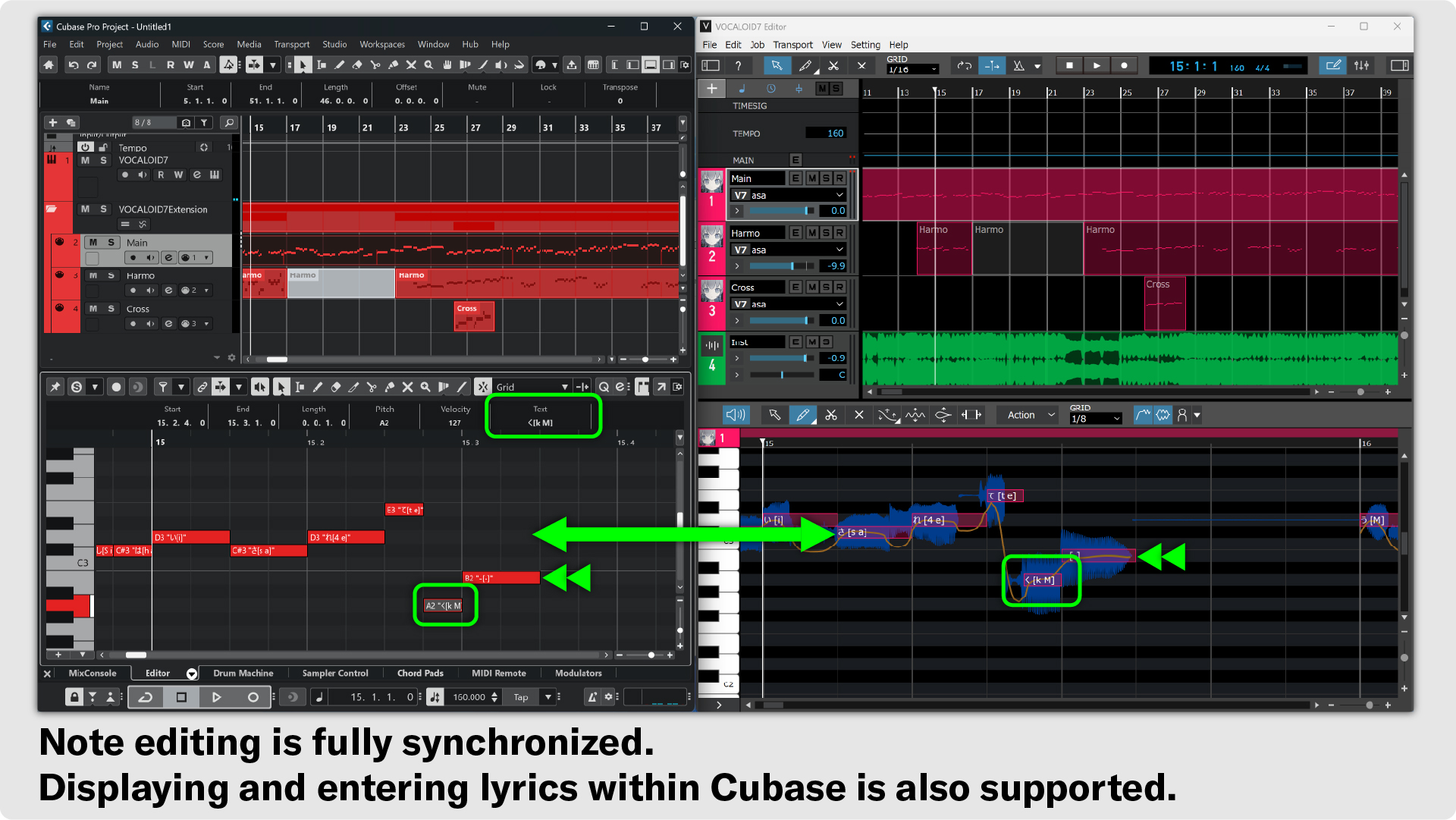
Control parameters and pitch bend information in VOCALOID data are also synchronized. Edits made on either side will automatically be reflected in the other. Control parameter lane data from VOCALOID7 Editor is displayed directly in the controller lanes of the Cubase Key Editor.
When you select a synchronized MIDI track in Cubase, the VST window displays the Voicebank selected for that track, the VOICE COLOR ON/OFF status, and the VOICE COLOR parameters.
When a VOCALOID7 Voicebank is selected, EXP, AIR, CHA, and ATK are displayed. The knob values are additively combined with the values in the control parameter area (controller lane) and reflected in the output sound.
It is also possible to change the voicebank directly from the VSTi interface.
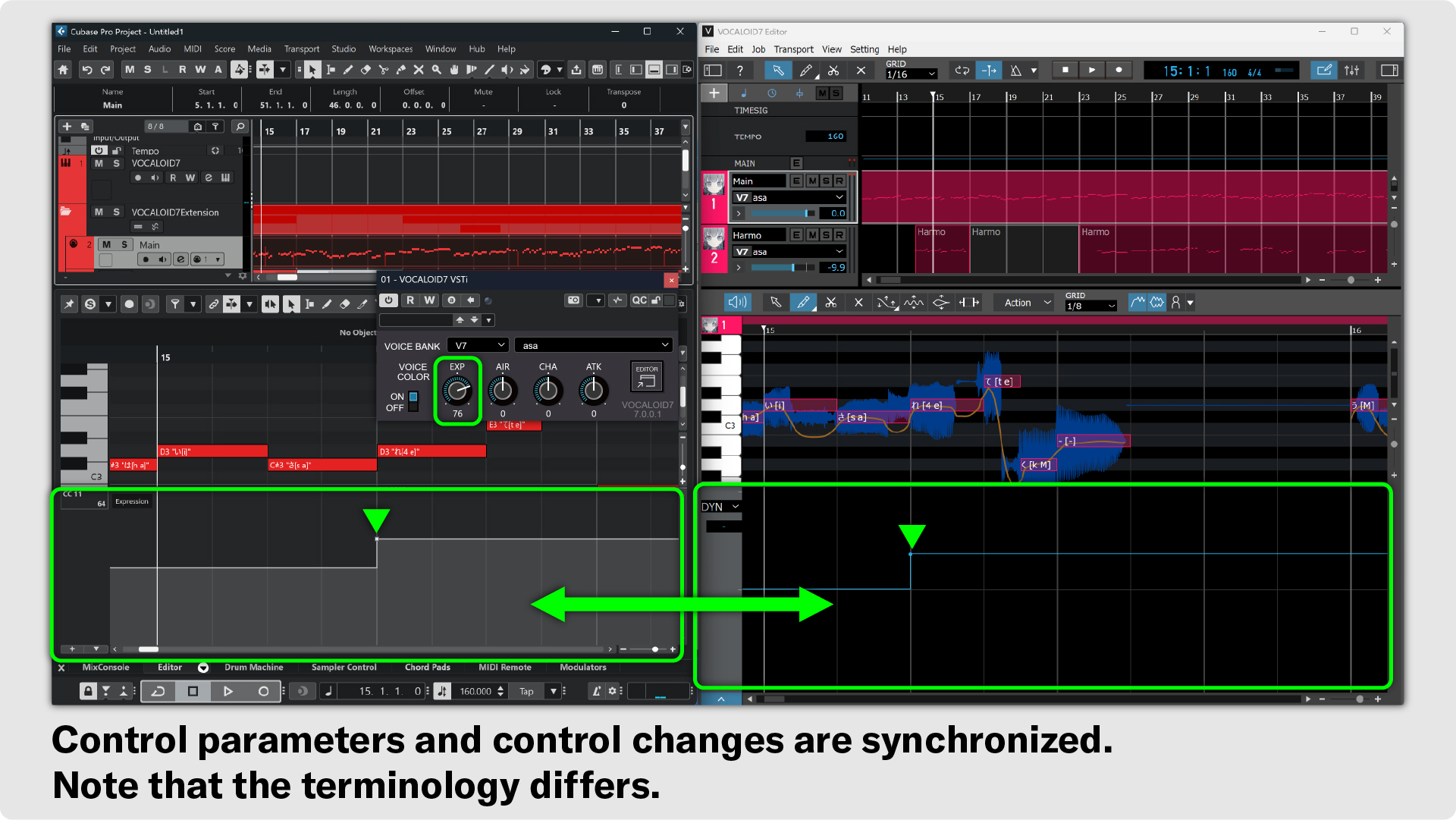
Control parameters in VOCALOID7 Editor are displayed as the following Control Change (CC) messages:
| PB: Pitch Bend | Pitch Bend |
| DYN: Dynamics | CC 11: Expression |
| AIR: Air | CC 85 |
| CHA: Character | CC 86 |
| EXP: Expression | CC 83: Gen Group 8 |
| ATK: Attack | CC 87 |
| PBS: Pitch Bend Sensitivity | CC 6: Data Entry MSB (and CC 38 / 100 / 101) |
Please note that there may be differences in naming conventions; for example, "Expression" in VOCALOID data differs from "11: Expression" in standard MIDI data.
- In Cubase, Control Change breakpoints can be created as either Step or Ramp. However, VOCALOID7 Editor only supports Step. Any Control Change data entered in Cubase will be converted by VOCALOID7 Editor before being output.
Project Management
VOCALOID7 Editor project data entered within Cubase is saved directly into the Cubase project file.
You can also export project data directly from the menu inside VOCALOID7 Editor as a VPRX file (VOCALOID7 project file). It is also possible to import VOCALOID project files, various MIDI data, and project files from third-party vocal synthesis software directly into VOCALOID7 Editor.
- Because tempo and time signature data are designed to follow Cubase, even if you import a VOCALOID project file that contains tempo and time signature information, that data will not be imported. If you want to import tempo and time signature data into a Cubase project, please import a MIDI file containing that tempo and time signature information directly into Cubase.
- If you do not have a MIDI file, open the VOCALOID project in the standalone version of VOCALOID7 Editor and export it in MIDI file format to create one.
Transport Controls and Project Information (Tempo, Time Signature)
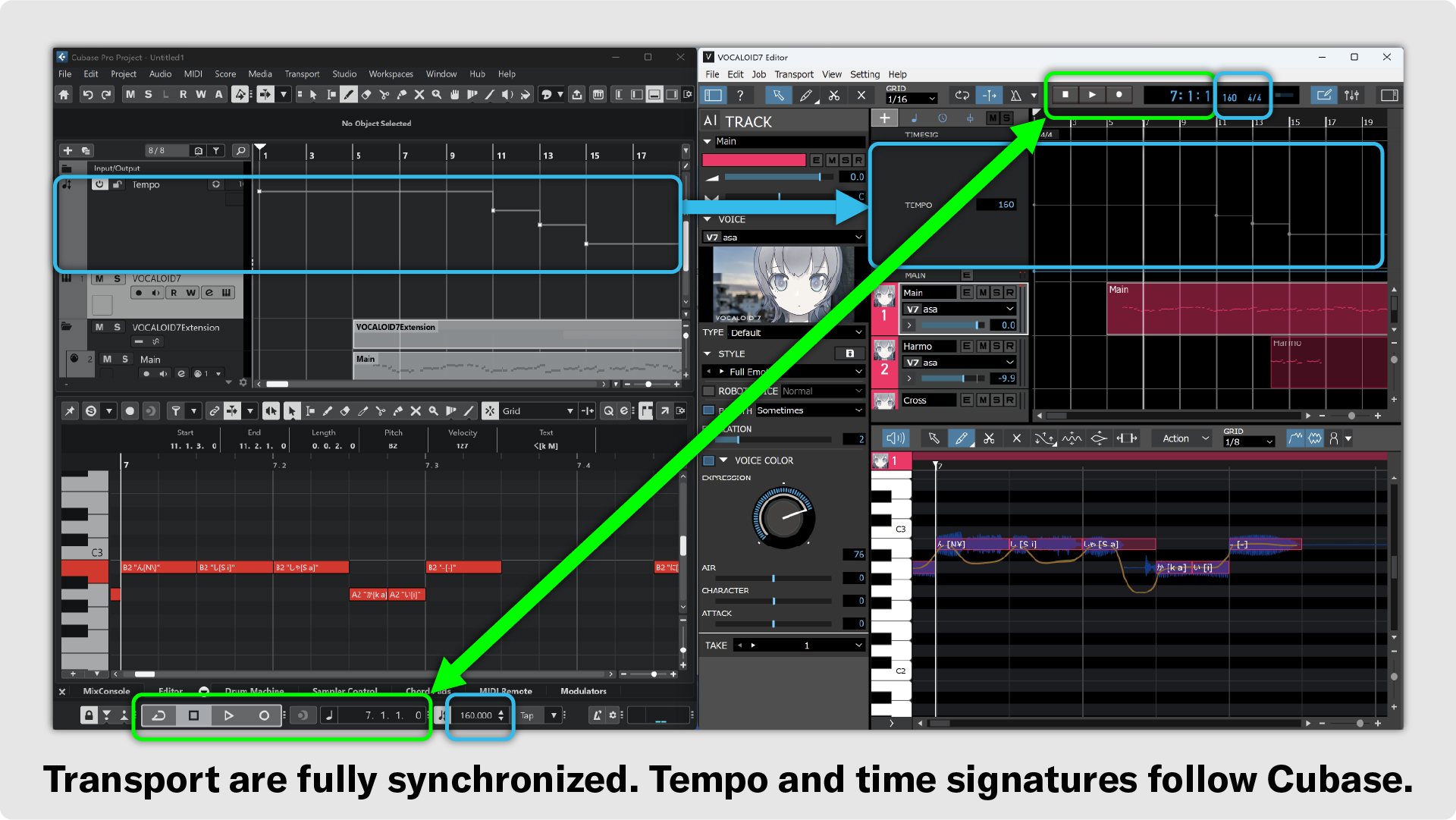
Transport controls such as playback, stop, and cycle (loop/repeat) are completely synchronized.
Project settings such as tempo and time signature follow Cubase. When you change the tempo or time signature track in Cubase, the tempo and time signature tracks in VOCALOID7 Editor update automatically.
- In Cubase, tempo change breakpoints can be set to either Step or Ramp. However, VOCALOID7 Editor only supports Step. Any tempo change data entered in Cubase will be converted by VOCALOID7 Editor before being output.
Track Creation, Deletion, and Part Operations
Creating and deleting tracks is also fully synchronized.
Part editing is also fully synchronized. For example, duplicating a part in Cubase will automatically duplicate it in VOCALOID7 Editor. This is especially convenient during arrangement, such as when duplicating section data from verse 1 to create verse 2.
Additionally, while track enable/disable (on/off) operations in Cubase are supported, VOCALOID7 Editor lacks a track-off function. Therefore, enabling or disabling tracks can only be controlled directly from Cubase.
Mute and Solo Operations for Individual Tracks
Mute and solo operations for each VOCALOID track are completely synchronized with the tracks displayed in Cubase.
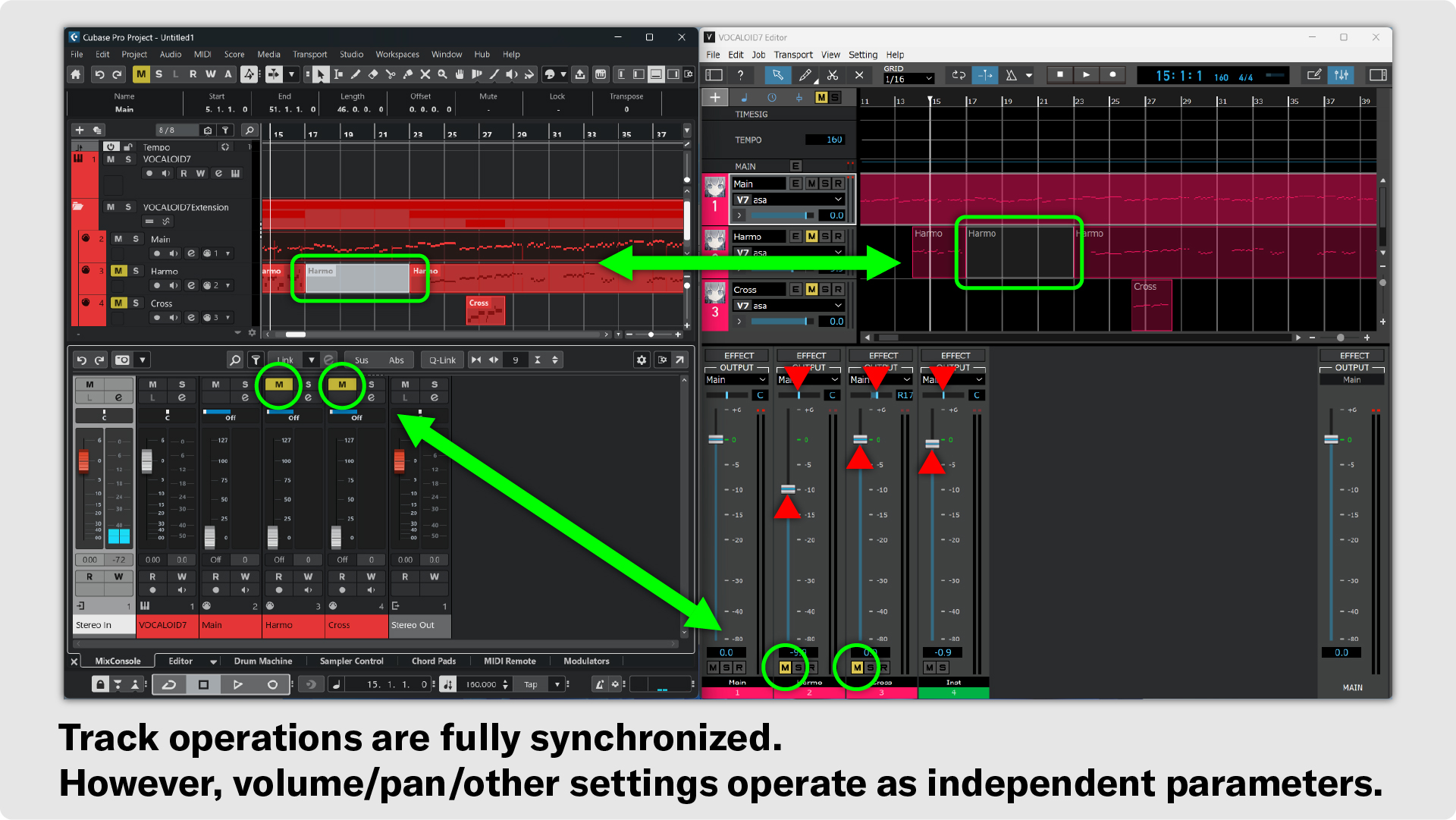
However, mixer settings in the VOCALOID7 Editor are not reflected in Cubase and exist as independent mixer parameters. For instance, volume and pan parameter settings in the VOCALOID7 Editor mixer are not linked to the controller lanes in Cubase (MIDI Control Change data).
When multi-channel output is not in use, volume levels for each VOCALOID track should be adjusted directly within VOCALOID7 Editor.
As outlined above, nearly all operations essential for editing are fully synchronized, enabling a streamlined VOCALOID production workflow that is unmatched by other DAWs or integrations between third-party DAWs and vocal synthesis software. If you want to achieve a precise mix, exporting audio directly from within VOCALOID7 Editor and placing it onto a new audio track in Cubase is the recommended approach.